Animbits User Documentation
Tools for animators.
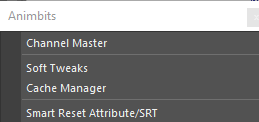
Animbits Hub
Quick animation tools in a small, transparent overlay over the viewport. Show and hide it with a hotkey, use a tool, and keep animating.
The hub has two kinds of tools:
Key Tools - rows of buttons to nudge keys in time, copy and paste world poses, and rotate controls around a temporary pivot
Tweener sliders - one slider per row to tween between keys, or blend toward the default, mirrored or a stored pose
Both work on the current selection, and on the selection bookmarks you choose without selecting their controls.

Setup:
mGear > Rigbits > Create mGear Hotkeys creates the
mGear_animbitsHubToggleruntime commandBind it to a key in the Maya Hotkey Editor (category mGear)
Press the key to show the hub, press it again to hide it. Animbits > Animbits Hub does the same.
The hub never takes keyboard focus, so all Maya hotkeys keep working while it is open.
Layout
From top to bottom:
the namespace label, shown when a bookmark row follows the selected namespace (see below)
the Key Tools rows
the slider mode bar (TW, BD, BM, BB, PP)
the Tweener slider rows
The key tool buttons, the mode bar and the sliders line up on the left. In BB mode the pose buffer circles of the sliders sit in the margin on their left. While a slider is dragged, everything but that slider hides to keep the view clear.
Rows: Selection and Bookmarks
Each tool shows a Selection row first, working on the selected controls, in the selection color (pastel green by default). Then it shows one row per selection bookmark enabled for it, in the bookmark color, working on the bookmark’s controls without selecting them.
To add a bookmark row, right-click the bookmark in the Bookmarks tool and check Show In Tools > Key Tools for a row of key tool buttons, Tweener for a slider row, or both. Isolate bookmarks can’t be used.

Namespace: bookmarks with Use Selected Object’s Namespace on follow the namespace shown at the top of the hub. It is taken from the selection when the hub opens, otherwise the last one used is kept, also between Maya sessions. Click it to pick another namespace of the scene. When that namespace is not in the scene, it is marked (missing) and those rows are disabled.
Key Tools
Each key tool row has, from left to right: Nudge Keys, Copy and Paste World Pose, and Temp Pivot. Each row keeps its own nudge amount, ripple and copied world pose.
Nudge Keys - < amount > ripple
Click < or > to shift keys earlier or later by the number of frames in the field. The current time follows, and each nudge is one undo step.
On the Selection row, what moves, in this order:
the selected keys, in the Graph Editor or Dope Sheet
otherwise, the keys of the selected controls inside the timeline range selection (Shift+drag on the time slider)
otherwise, the keys of the selected controls on the current frame; only the selected Channel Box attributes when there are some
On a bookmark row, the keys of the bookmark controls move: inside the timeline range selection, otherwise on the current frame. Selected keys and the Channel Box selection don’t apply.
Scroll over the number to change the amount (1 to 100), or click it to type a value. Each row remembers its amount.
Ripple also moves all the keys after the nudged ones, to make room or close a gap.
A nudge that would make keys land on or jump over other keys is blocked with a warning, and nothing moves.
Copy / Paste World Pose
Copy stores the world position, rotation and scale of the row’s controls: the selected controls, or the bookmark’s controls.
Paste keys that world pose back: on every frame of the timeline range selection when there is one, so a hand or a foot stays planted, otherwise on the current frame. Parents are pasted before their children, and the whole paste is one undo step.
On the Selection row with nothing selected, the pose goes back on the copied controls. Otherwise controls are matched by name, then by the same name in another namespace (paste one character’s pose on another), then by selection order.
The Paste button is dim while nothing is copied; hover it to see the frame and controls of the copied pose. The copy is kept while Maya is open and cleared when a new scene is created or opened.
Temp Pivot - rotate the row’s controls around any point, e.g. a hand around a fingertip or a foot around its toe
Click the crosshair button: a pivot locator appears at the move tool handle of the selection (or at the center of the row’s controls when nothing is selected) and is selected. Move it where the pivot should be.
Click it again: the controls now follow the pivot, on every keyed frame. Rotate (and key) the pivot to move them around it.
Click the check button to bake: the controls get keys on their keyed frames and on the frames where you keyed the pivot, and the pivot is removed. Or click the cross button to cancel: everything is removed and the animation is as it was.
Works across the timeline range selection, or the playback range when there is none.
Only one temp pivot at a time: the other rows’ pivot buttons are dim while one is in use. Ctrl+click while placing cancels.
Controls with their translate locked can’t move around another point and are skipped with a warning.
Each step is one undo step. A temp pivot saved in a scene shows up again when you open the hub, ready to bake or cancel.
Tweener Sliders
Each slider row tweens or blends its controls, depending on the mode picked in the mode bar.
Drag the handle - keys the controls at the position you drag to; on release the handle springs back to the center. Each drag is one undo step.
Click a tick - applies that position directly (10% steps)
Components and non-keyable items in a bookmark are ignored.
Slider Modes
The mode bar sets the mode of every slider. The handle shows the active mode.
TW - Tween Machine - blend between the previous key (left end, 0%) and the next key (right end, 100%) on the current frame
BD - Blend to Default - the center is the current pose; drag right to blend toward the default values (right end = default pose), drag left to exaggerate the difference
BM - Blend to Mirror - the center is the current pose; drag right to blend toward the mirrored pose of the other side (right end = full mirror), drag left to exaggerate the difference. Center controls blend toward symmetry.
BB - Blend to Buffer - the center is the current pose; drag right to blend toward a stored pose, drag left to exaggerate the difference
PP - Push / Pull - drag right to exaggerate the pose relative to the in-between of its previous and next keys, drag left to pull it back to that in-between
In BD, BM and BB, animated attributes are keyed on the current frame and the other attributes are set. TW and PP only change attributes with a key on both sides of the current frame; the others are skipped.
Pose buffer (BB): in BB mode a circle appears on the left of each slider. Click it to store the current pose of that row; the circle is filled while a pose is stored, and hovering it shows the frame, the number of controls, the namespace and when it was stored. Ctrl+click clears it. Each row has its own buffer, kept while Maya is open and cleared when a new scene is created or opened.
When blending to a buffer, the stored controls are matched to the row’s controls by name, then by the same name in another namespace, so a pose stored on one character can be used on another. If no name matches, they are paired in selection order. With nothing selected, the selection row blends the stored controls themselves.
Settings
Right-click the hub (between its buttons and sliders) for its settings. They are saved between Maya sessions.

Show Names - Hover shows a row’s name in the tooltips when the cursor is over it; Always shows it next to the row
Show Tooltips - help tooltips on the key tool buttons, the mode buttons, the sliders and the buffer circles, with the tool name, what it does and how to use it. When off, only short names are shown.
Placement - Under Cursor opens the hub with the first slider handle under the mouse pointer, so you can drag right away; Fixed Position opens it where you left it, moved with the grip handle at its top-left
Selection Color - color of the Selection rows (pastel green by default)
Scale - - / + resize the hub; Ctrl+Mouse Wheel over the hub does the same
Namespace - the namespace for namespace-following bookmarks
Close - hide the hub
Bookmarks
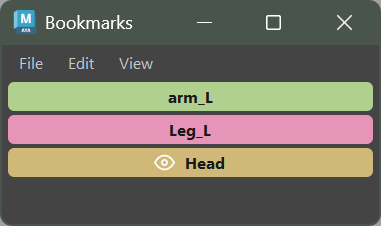
Bookmarks is a tool for saving and restoring object selections in Maya. It allows you to create named bookmarks that store a set of selected objects, and quickly recall them later. It also provides an isolate view mode for focusing on specific objects.
Open it from Animbits > Bookmarks. Its bookmarks can also drive rows of the Animbits Hub (see Show In Tools below).
With mGear file drop enabled (see File Drop), dropping a .sbk file into Maya opens Bookmarks and loads it, replacing or appending to the current bookmarks.
Features
Selection Bookmarks
Save Selection: Store the current Maya selection as a named bookmark
Restore Selection: Click a bookmark to select those objects in the scene
Rename and Delete: Right-click on bookmarks for management options
Key Members: Middle-click a selection bookmark to key all its controls on the current frame, without changing the selection. A viewport message confirms how many controls were keyed. Components and non-keyable items are skipped.
Show In Tools: Right-click a selection bookmark and check a tool, Tweener (a slider row) or Key Tools (a row of nudge and world pose buttons), to list the bookmark in that tool (see Animbits Hub)
Isolate View
Isolate Bookmark: Show only the bookmarked objects in the viewport, hiding everything else
Toggle: Click again to restore full scene visibility
Name Resolution and Namespaces
As of bookmark schema v2.0, items are stored as short names with their namespace (char01:body, char01:body.f[0:10]) rather than full DAG paths. This means a bookmark survives DAG reorganization — moving the rig under a new group, renaming a parent, etc. no longer breaks the bookmark.
Per-bookmark namespace mode
Right-click a bookmark and toggle Use Selected Object’s Namespace to control how the bookmark resolves at recall time:
Off (default): The bookmark uses the namespace embedded when it was created.
char01:bodyalways selectschar01:body.On: At recall time, the namespace is taken from whatever object you currently have selected, and the bookmark’s stored namespaces are replaced. This lets one bookmark drive the same selection set across multiple character instances — create a bookmark on
char01, select any object inchar02, click the bookmark, and the equivalentchar02:items are selected. The tooltip showsNamespace: from current selectionwhen this mode is on.
The namespace taken from the selection is remembered, also between Maya sessions. If the toggle is on but nothing is selected when you click the bookmark, the last namespace used is taken. Only when no namespace was ever used does the tool warn and do nothing.
Ambiguous short names
If a stored short name (after any namespace swap) matches more than one object in the scene, the bookmark refuses to select anything and shows a warning listing every match. Rename the conflicting nodes to disambiguate, or namespace them.
Backwards Compatibility
Existing v1.0
.sbkfiles (which store full DAG paths) still load. Each item is trimmed to its storage form on load.Re-saving a v1.0 file writes it out as v2.0 automatically;
Use Selected Object's Namespacedefaults to off on migrated bookmarks so behavior matches the original.Bookmarks stored in the Maya scene (network node) follow the same migration rules.
Scripting
The bookmark data, actions and storage live in mgear.core.selection_bookmarks, for tools and scripts:
from mgear.core import selection_bookmarks

for bookmark in selection_bookmarks.load_scene_bookmarks():
    if bookmark["type"] == selection_bookmarks.BOOKMARK_SELECTION:
        selection_bookmarks.key_bookmark_members(bookmark)
Channel Master
Channel Master is an alternative ChannelBox, but allowing the user to create custom configurations and store it.
With mGear file drop enabled (see File Drop), dropping a .cmc file into Maya creates its node and opens Channel Master on it.
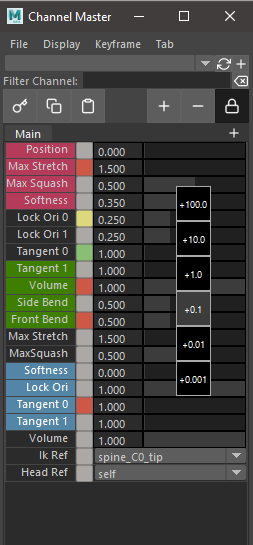
The configuration is stored in a persistent node in the scene. The data can be exported and imported.
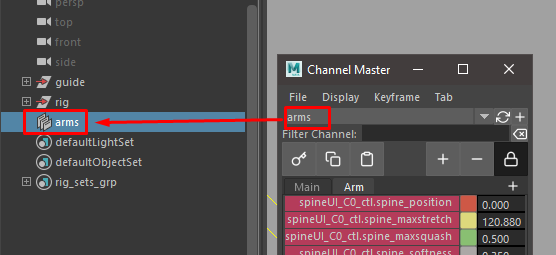
The channels can be a mix from different objects. The only rule is that the object that contains the channel and the channel master node should be in the same namespace.
However the internal data is not stored with name spaces, so the same configuration can be re-used in different name spaces.
The Main tab works like the regular ChannelBox and the data is rebuild on the flight. The advantage is that is possible to lock the content using the lock icon. Also create a node is not required to use the main tab
To create custom configuration, require a custom node.
Warning
Custom configurations needs to be saved. If to be stored in the node. Missing to save the new configuration will revert the channel configuration to the previous state when the node is refresh or change node in the drop-down menu
Warning
The tool has been design to avoid bottleneck the evaluation while playback by turning off the refresh and updating on demand in some situations. When scrubbing the timeline still updating the channel values. This will take some FPS away (Only when Scrubbing, not in Playback).
If you need to do scrubbing a lot and need the performance. You can change the Channel Master to empty Main tab, by lock the tab when nothing is selected. Or Just close Channel Master
We planning to add more control over this in the future.
File Menu:
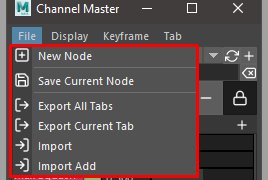
New Node: Creates a new node
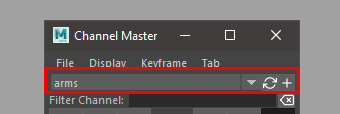
Also is possible to add nodes from the node bar in the UI
Save Current Node: Save the current node configuration
Export All Tabs: Export the current node configuration to a Json file
Export Current Tab: Export current tab configuration to Json file
Import: Import and create a new node
Import Add: Import and add the configuration to an existing node
Display Menu:
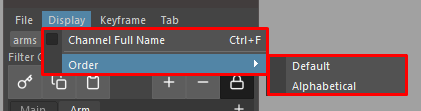
Channel Full Name: Display the full name of the channel

Order: Arrange the channels by Alphabetic or Default order
Keyframe Menu:
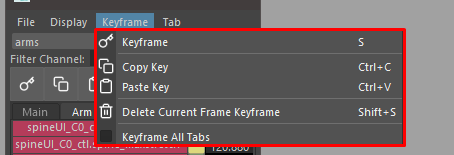
Keyframe: Toggle a keyframe for all the channels in the current tab. If there is a channel that doesn’t have keyframe will add keyframe. If all channels have keyframe it will remove the keyframe.
Copy key: Copy current values in the buffer
Paste key: Paste from buffer and set keyframe
Delete current keyframe: Delete the current tab keyframe
Keyframe all tabs: Keyframe command will be applied to all tabs. With this option active the toggle functionality will change to always key.
Tabs Menu:
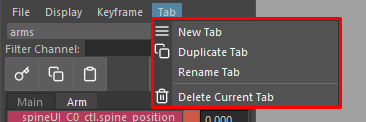
New Tab: Create new tab.
Duplicate Tab: Duplicate current Tab
Rename Tab: Rename current tab
Delete Current Tab: Delete current Tab
Tabs can be added using the + icon in the tabs row
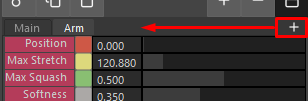
Channels

Keyframe button: Same command as keyframe menu
Copy key button: Same command as keyframe menu
Copy paste button: Same command as keyframe menu
Plus Button: Add selected channels from ChannelBox to Channel Master
Minus Button: Remove SelecteT channels
Lock refresh: in Main Tab
Search channel: will filter the channel list
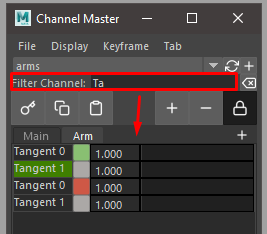
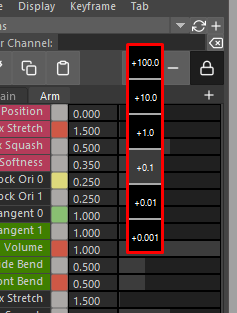
In the channels area we will find 2 context menus and a middle click slider precision widget.
Channel context menu: The actions in this menu can be apply to multiple selection
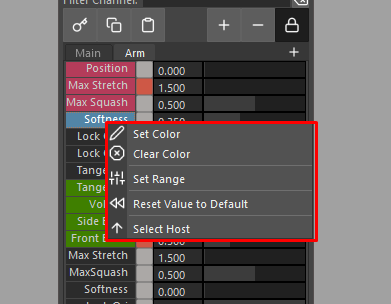
Set Color: Set a custom color for easy identification.
Clear Color: Clear custom color.
Set Range: Set range min and max for the slider.
Reset Value to Default: Reset the channel value.
Select Host: Select the object that owns the channel.
Keyframe channel button context menu.:
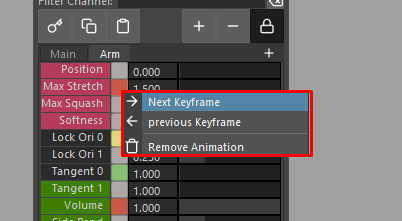
Next Keyframe: Move time to the next keyframe.
Previous Keyframe: Move time to the previous keyframe.
Remove Animation: Delete channel animation.
Keyframe button color coding:
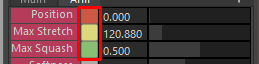
Red: Keyframe in the current frame.
Green: Animation but not keyframe in the current frame.
Yellow: Current value changed.
The slider precision widget is similar to the one from Houdini
Soft Tweaks
This tool create and manage SoftTweaks (ST for short) and also provide as simple API to import and export configurations, so is possible to integrate with your pipeline and animation publishing system.
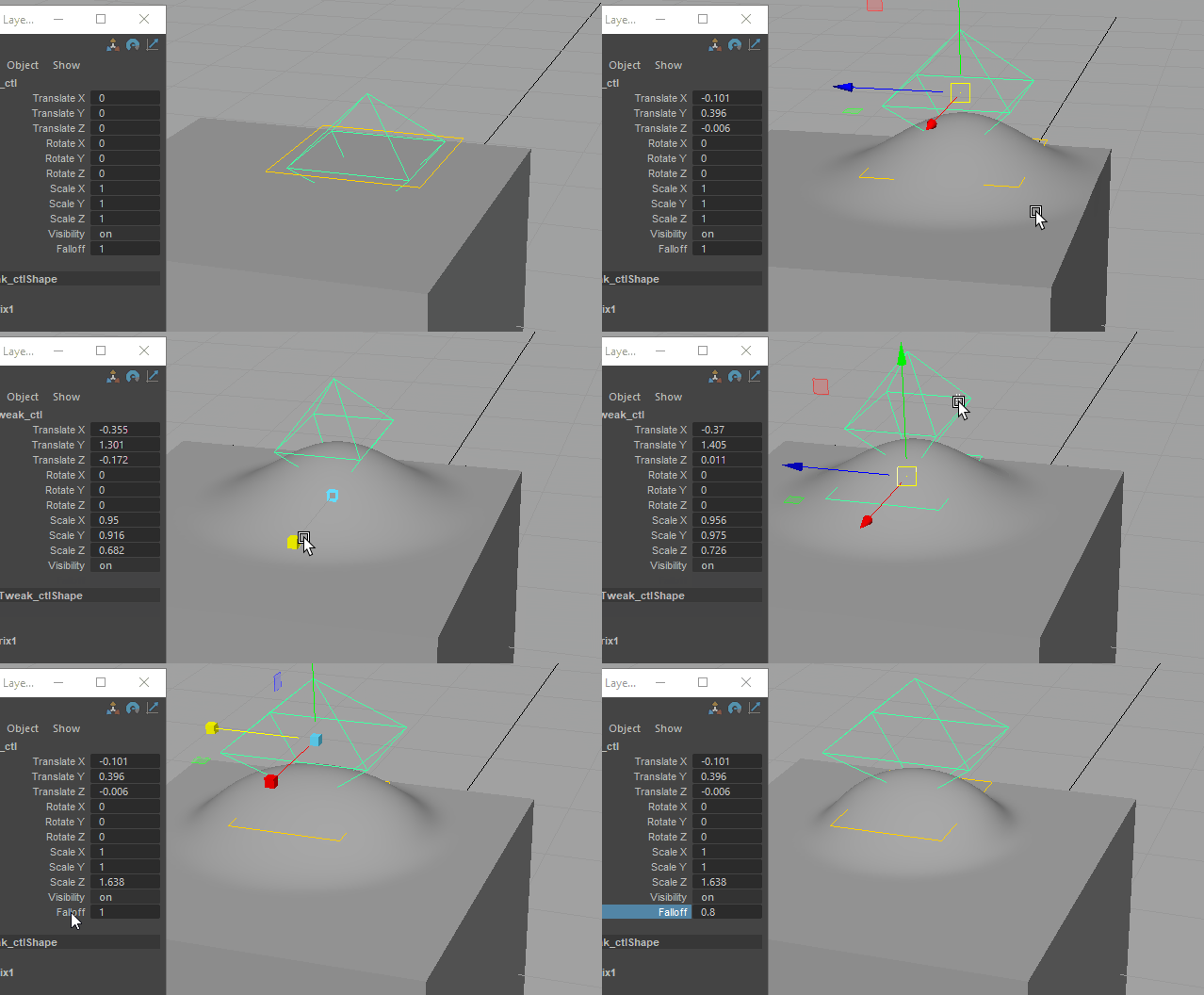
SoftTweak is a dynamic position tweak using softmod deformer The credit of the idea goes to Vasil Shotarov , thanks!
The SoftTweak have 2 controls. The Base represents the bind position where the ST will not have any effect. The main control will trigger the deformation when is not in the reset position..

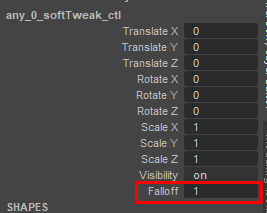
In the ST main control we can find a falloff channel to control the area of deformation
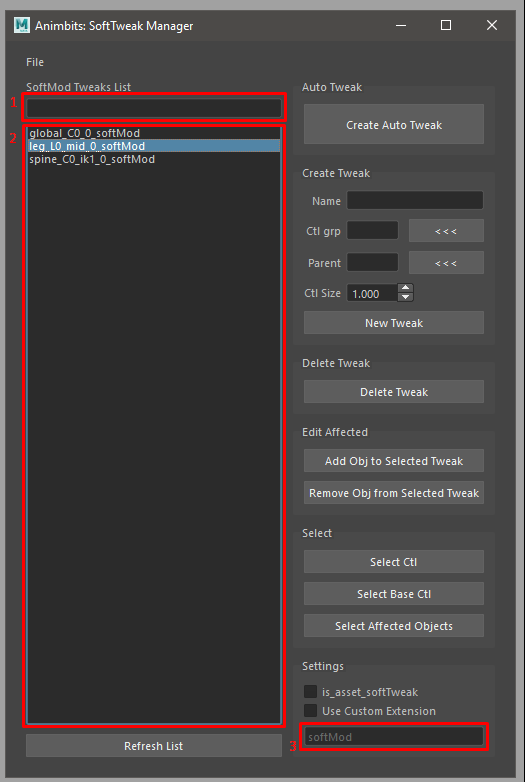
SoftTweak Manager GUI
By default the SoftTweak is design to be used by shot and not part of a rig. However if is needed to publish a rig with some SoftTweaks there is an option to flag (is_asset_softTweak) the SoftTweak as asset tweak. So the tool will make a distinction between the ones that need to be publish with the shot and the ones that are included in the asset.
File Menu:
Export Selected: Exports selected ST from the list
Export All: Exports all the ST from the list. If search filter is used, will not affect the export. But export will make a distinction between regular SoftTweak and asset SoftTweak
Import: Import ST configuration from a file.
GUI:
Search Filter: (1) Quick search filter of the SoftTweak list.
SoftTweaks List: (2) ST selection list.
Create Auto Tweak: Create a tweak based on the current selection.
Select the objects to apply the ST
Last element selected should be a control. This will be the parent of the ST. Also the ST will take the Name and the group(set) from the parent
Click Crete Auto Tweak
Name: Name of the new ST.
Ctl grp: Group of controls to add the new ST controls.
Parent: Parent of the new ST.
Ctl Size: Parent of the new ST.
New Tweak: Create a new ST.
Delete Tweak: Delete the tweaks selected in the ST list.
Add Object to Selected Tweak: Add selected objects to the tweaks selected in the ST list.
Remove Object from Selected Tweak: Remove selected objects from the tweaks selected in the ST list.
Select Ctl: Select the control from the tweaks selected in the ST list.
Select Base Ctl: Select the Base control from the tweaks selected in the ST list.
Select Affected Objects: Select the object affected by the the tweaks selected in the ST list.
is_asset_softTweak: Tag the new created ST as an asset ST. This will also change the ST selection list to show the asset ST.
Use Custom Extension: The new ST will have a custom suffix.
Suffix Name: (3) Suffix name for the new ST.
API
# To import a softTweak configuration from script editor or Shifter Custom Step:

from mgear.animbits import softTweaks as st
st.importConfigurationFromFile(filePath= path to the .smt configuration file)

# to export configuration
# list the softtweaks in the scene
softtweaks = st._listSoftModTweaks(is_asset=False)
# export
st.exportConfiguration(softtweaks)
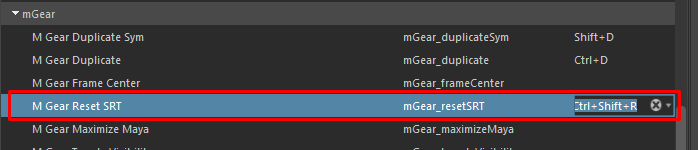
Smart Reset Attribute/SRT
Puts the selected controls back to their default values in one click, for example to return a control to its neutral pose while posing.
How it decides what to reset:
Channels highlighted in the Channel Box - Only those channels are reset, on every selected object. Use it to reset a single custom attribute (for example a
blendorrollchannel) without touching the transforms.Nothing highlighted - The transforms are reset: translate, rotate and scale, plus visibility. The rotate order is reset too, but only on Shifter controls that store their original rotate order; on other nodes it is left as it is, and a message says so.
Values: each channel goes back to its Maya default value: 0 for translate and rotate, 1 for scale and visibility, and the default value set when a custom attribute was created. It is not a stored pose: a control whose neutral pose is not at its default values goes to its default values.
Notes:
Locked or connected channels are skipped without error.
The reset is one undo step, whatever the number of objects and channels.
No key is set. On animated channels the reset value lasts until the time changes: key it to keep it.
Works on any number of selected objects; channels that an object doesn’t have are skipped.
TIP: Set a hotkey for this command using mGear Hotkey creator in utilities menu.
Cache Manager
Swaps heavy rigs for a lightweight GPU cache of their geometry, so scenes with many characters play fast in the viewport. When you need to animate a rig again, one click brings it back.
How it works: the animated geometry of a rig is written to an Alembic file (.abc) with Maya’s GPU cache, over the playback range. A gpuCache node named <rig>_cache shows that file in the viewport, and the rig itself is unloaded or hidden, so Maya no longer evaluates it.
Requirements:
Rigs are found by their
is_rigattribute (every Shifter rig has it). Studios can use another attribute with theMGEAR_CACHE_MANAGER_RIG_ATTRIBUTEenvironment variable.The rigs should be referenced: unloading is done on the reference.
The Model group must be set: the group of the rig that holds the meshes to cache.
Options (saved in your preferences, <Maya app dir>/mGear/animbits_cache_manager.json):
Rig switch - What happens to the rig once cached: Unload its reference (default, lightest) or Hide it.
Model group - Name of the group holding the meshes, without namespace (for example
model). Select the group and click Set, or type it and click Set. It is searched under each rig, so the same name works for every character.GPU path - Folder where the cache files are written (… to browse). Default: the
MGEAR_CACHE_MANAGER_CACHE_DESTINATIONenvironment variable, otherwise the temp folder.Display type - Current keeps the meshes’ own look; Color shades the whole cache with the color you pick, to tell cached characters apart.
Main window:
Filter - Type to filter the rig list.
Rig list - The rigs of the scene. A cache icon marks the cached ones. Multiple selection is allowed.
Cache Selected - Caches the selected rigs over the playback range, then unloads or hides them. Rigs that are already cached are skipped.
Set Rig - Brings the selected cached rigs back: the reference is reloaded (or the rig shown again), the
gpuCachenode is removed and its cache file is deleted from disk.
Notes:
The cache is a snapshot: after changing the animation, Set Rig and cache again.
Each cache file name includes the date and time, so caches never overwrite each other.
Color display uses a temporary Render Setup layer while caching: existing Render Setup layers of the scene are removed. Use Current in scenes that use Render Setup.
The list refreshes by itself when a scene is opened or created.
HumanIK Mapper
Drives an mGear rig with motion capture through Maya HumanIK, and bakes the mocap onto the rig controls, one file at a time or in batch.
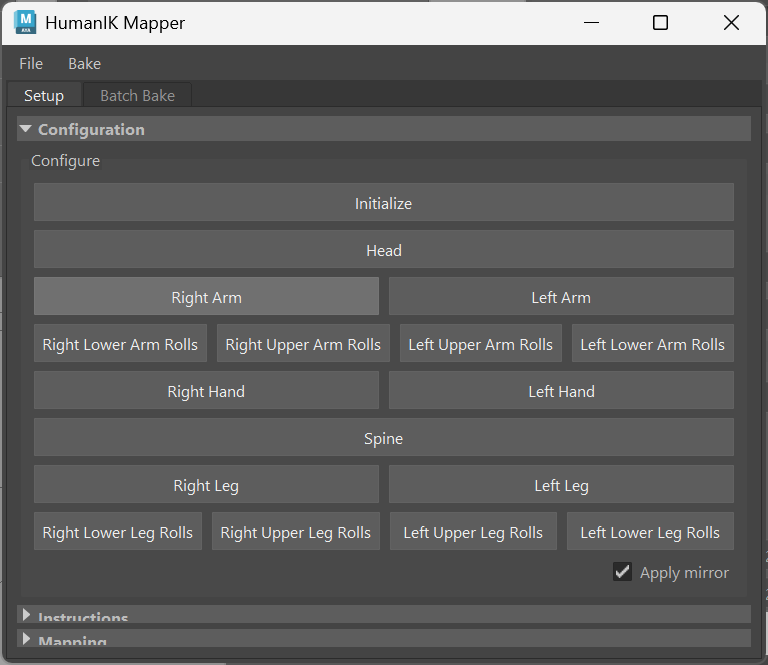
How it works: the tool builds a HumanIK character definition, MGearIKHuman, whose “bones” are the rig controls you pick for each body part. Any HumanIK character in the scene (mocap, another character) can then drive the rig as its Source, and be baked onto the controls. Everything is done from this window: Maya’s HumanIK window is not needed (File > Open HumanIK Window opens it for advanced settings). The mayaHIK plug-in is loaded when the tool opens, fbxmaya when FBX files are batch baked.
Character
Pose the rig in a stance HumanIK accepts (usually a T-pose), with the FK controls you want to drive.
Select the root control (for example
world_ctlor the body root) and click Initialize. This createsMGearIKHumanand maps the selection as the Reference. If the character already exists, Initialize only sets its Reference.
The label shows the character and how many bones are mapped.
Mapping tab
Body part buttons - Head, Spine, R/L Arm, R/L Hand, R/L Leg and the roll buttons. Their color shows the mapping state: green complete, orange partial, grey nothing mapped. The tooltip lists each bone and its control; bones marked
*are required by HumanIK (Hips, Spine, Head, and the upper leg, leg, foot, arm, forearm and hand of each side). The others (Shoulder, ToeBase, the extra spine and neck joints, fingers, rolls) are optional.Click a button to open its Map dialog: it lists the bones of the part in order (for example Shoulder, Arm, ForeArm, Hand), with the required ones in bold. Select the matching controls in that order in the viewport: the dialog pairs each bone with a control as you select, before anything is mapped. Select fewer controls to skip the last bones. Warnings show extra controls, required bones left without a control, and missing opposite controls. Click Apply to map the pairs (one undo).
Mirror - Mapping one side also maps the other side to the opposite controls, found with the mGear left/right naming. Mirrored pairs are shown in italic; a bone without opposite control is left unmapped and reported.
If a control has locked or connected translate, rotate or scale channels, you are asked to unlock them when mapping or baking: HumanIK needs to drive them. Cancel to leave the rig unchanged.
Mapping table - Every HumanIK bone with its control and Sub IK controls; unmapped bones are grey. Type in the filter to find a bone or control, and check Mapped only to hide the unmapped bones. Double-click a row to select its controls. Right-click for:
Select Controls - Select the controls of the selected rows.
Map Selected Control - Map the selected control to the row’s bone.
Unmap - Remove the controls of the selected rows from the definition.
Set Selection as Sub IK / Clear Sub IK - Sub IK controls are extra controls that follow a mapped control during the bake, for rigs where one HumanIK bone should drive more than one control (for example an IK control following the mapped FK hand). They keep their offset to the mapped control, and only their free channels are constrained and baked. With Mirror on, the opposite controls are linked too.
The table and buttons refresh after each action, on undo and redo, and when a scene is opened or created. Use File > Refresh after editing the definition in the HumanIK window.
File menu - Export Mapping / Import Mapping save and load the mapping as a .hikm file (bone, control and Sub IK controls). Control names are saved without namespace. On import, the controls are found in the namespace of the selection: select any control of the target rig first. Without selection, a control is found in any namespace when its name is unique. Controls that are missing or found in several namespaces are skipped with a warning. Files saved by older versions of the tool are read too.
Source and Bake
Source - The HumanIK character driving the rig: any other HumanIK character in the scene (the list refreshes when you open it), or (none). Both definitions are locked when a source is set. If the rig is missing bones HumanIK requires, a warning tells which body parts to complete.
Bake (button or Bake > Bake) - Bake the source onto the mapped and Sub IK controls over the playback range. With New layer, the keys go to a new override animation layer named in the field (or after the source), and the base layer keeps its animation; otherwise the keys go to the base layer. The bake is one undo, and the source is disconnected afterwards, as with HumanIK’s bake.
Pre-roll - Frames evaluated before the playback start, without keys, to let the first frames settle.
Bake > Bake to Timeline - Bake, then move the keys into a Time Editor clip on a new track, named after the source.
Batch Bake tab
Bakes several animation files onto the rig in one go, in order, with a progress bar (press Esc to stop after the current file).

Add… / Remove - Add
.fbx,.maor.mbfiles (each with a HumanIK character) or remove the selected ones. Load List… / Save List… read and write the file list (.bkcn).Each file is referenced in its own namespace, its HumanIK character is set as the source, and it is baked over its own frame range (from its keys; the playback range when it has none), with the Pre-roll of the Source section.
Layer per file - Each file is baked on its own override animation layer, named after the file. Use it to compare takes.
Time Editor clips - Each file becomes a Time Editor clip on a new track, each clip starting right after the previous one; the playback range is set to cover them all. Use it to assemble a sequence.
Remove references - Remove each file’s reference after its bake.
The report lists each file with its result: baked (with the frame range), skipped (no HumanIK character in the file) or error.
Notes:
The scene is not saved by the batch bake.
The mapping is not checked against the rig’s IK/FK state: map and bake the controls you want animated (usually FK).
Space Recorder
Records where objects are in the world over the timeline, and puts them back there later, even after the hierarchy, the parent or the space switch changed. Typical uses: change a control’s space switch (for example a hand from world to chest) without the hand moving, or copy the motion of one object onto another, without constraints.
Window: three buffers, A, B and C, each with:
Record Buffer - Stores the world position, rotation and scale of each selected object on every frame of the playback range. Press Esc to stop early: the frames recorded so far are kept.
Apply Buffer - Puts the recorded objects back at their recorded world positions on every recorded frame of the playback range, and keys them. The tooltip shows what the buffer holds (objects and frames); the Apply buttons are disabled while a buffer is empty.
Apply Sel Buffer - Applies the recording to the current selection instead: the first selected object gets the first recorded object’s motion, the second the second, and so on (by selection order, not by name).
Workflow (space switch without pop):
Set the playback range to the frames to fix.
Select the controls and click Record Buffer A.
Change the space switch (or reparent, or edit the parents’ animation).
Click Apply Buffer A: the controls are keyed on every frame so they stay where they were in the world.
Notes:
Frames are recorded by frame number. Applying uses the recorded frames inside the current playback range; frames of the range that were not recorded are skipped with a warning.
Applying keys every frame, on the translate, rotate and scale channels only (locked or connected channels and custom attributes are not keyed): simplify the curves afterwards if you need sparse keys.
Recorded parents are applied before their children, so a recorded hierarchy lands where it was.
Each apply is one undo step, and the current frame is kept.
For Apply Sel Buffer, extra selected objects (more than were recorded) are skipped with a warning. Recorded objects deleted since are skipped too.
Buffers live in memory for the Maya session: they are kept when the window is closed and reopened, but not saved with the scene.
Blocking Ghosts
See your key poses side by side while you block. Blocking Ghosts creates static, semi-transparent copies (“ghosts”) of the character at the keyframes of the controls you choose, and keeps them in step with the timeline and the camera.

Key Features:
Ghosts at every keyframe of a set of watched controls inside a frame range, including the pose on the current frame
New, deleted or moved keys are picked up automatically when you move the timeline
Previous ghosts and next ghosts get their own color; the ghost on the current frame is hidden, since the live rig already shows that pose
Spread the ghosts sideways along the camera’s right axis so overlapping poses can be read, following the camera as you tumble; positive or negative spacing picks which side the previous poses go
Click a ghost to jump to its frame; your rig selection is kept
When you change a pose and move on, its ghost is updated from the new pose
Switch between the ghost colors and the character’s own shaders (multi-material meshes included)
Works with referenced, namespaced rigs
Workflow:
Add the character meshes to Objects to ghost (select them, then Add Selected)
Add the controls whose keys define the poses to Watch controls
Set the Frame range, or click Timeline to use the timeline’s playback range
Click Generate
Scrub or click ghosts to move between poses; adjust Transparency, Spacing and Shading at any time
Click Clear to remove the ghosts
Options:

Frame range - Start and end frame. Every key of the watched controls in this range gets a ghost. More than 30 poses asks for confirmation first.
Timeline - Set the frame range to the timeline’s playback range
Previous color / Post color - Colors of the ghosts before and after the current frame
Transparency - Ghost transparency, from opaque (0) to clear (1). Applies to Pre / Post Color shading only.
Spacing - Distance between poses along the camera’s right axis, in world units. 0 keeps every ghost in place. Positive values place previous poses on the right and next poses on the left; negative values swap them.
Shading - Pre / Post Color or Original Shader
Menus:
File Menu - Export / Import configurations (
.bgh;.jsonfiles are also accepted) and a list of recent configurations
Notes:
When you add, delete or move a key of a watched control inside the frame range, the ghosts are updated the next time you move the timeline (once it stops).
Original Shader shows the character’s own materials, so the transparency slider is disabled in that mode.
Ghosts are hidden while the timeline plays.
Ghosts are never saved with the scene, and nothing the tool does goes into the undo queue, so Ctrl+Z only undoes your own edits. To remove ghosts, use Clear.
Closing the window, opening a scene or creating a new scene removes the ghosts.
Spring Manager
Add spring dynamics to animation controls for secondary motion: tails, antennas, hair, ears, cloth pieces or any control that should follow the animation with overlap and jiggle. The springs are live in the scene and are baked to keys when the animation is final.
The Spring Manager works on any animation control. It is not related to the Shifter spring components (see Bake/Clear Spring Nodes for those).
Workflow:
Select the controls and press a direction button in the Create section. Auto aims each spring along the chain: towards the first child, or away from the parent for the last control.
Play the animation. Select springs in the viewport or in the Springs list and tune them in the Parameters section.
Save the setup as a preset to reuse it on other shots or characters.
Springs > Bake Selected / Bake All to convert the dynamics to keys.
The control animation is moved to a spring root node while the spring is active, and given back to the control when the spring is deleted. Every create, edit, bake and delete is a single undo step.
Solver
The Solver menu lists the spring solvers:
Classic - The mGear spring (
mgear_springNode) included with mGear. One independent spring per control.Classic Gravity - The Classic spring with gravity, sphere colliders and a ground (
mgear_springGravityNode, included with mGear). See Classic Gravity.Bone Dynamics - Chain springs using the optional boneDynamicsNode plug-in: gravity, wind, angle limits, target pose and branching. See Bone Dynamics (optional).
Solvers that need a plug-in that is not installed are shown disabled. The Create section shows the options of the selected solver, and a Solver section shows its scene-wide settings when it has some.
Create

X, Y, Z, -X, -Y, -Z - Create springs on the selected controls, aiming along that axis of each control.
Auto - Find the direction of each control from its chain.
New springs use the values shown in the Parameters section when no spring is selected. Controls that already have a spring, or with locked translate and rotate, are skipped.
Springs
Lists the springs of the scene, with their solver and state. Type in the filter field to show only the matching springs (case insensitive, * wildcard). Drag the bar under the list to make it taller or shorter; the height is remembered. The list and the Maya selection follow each other: selecting a control selects its spring row, and selecting rows selects the controls.

Right-click a spring for: Select Rig Nodes, Enable / Disable (total intensity 1 or 0), Bake Selected…, Delete Selected and Refresh. Bone Dynamics springs also have the Target Pose submenu (see Bone Dynamics (optional)). The list updates by itself after the tool’s actions, undo, redo and scene changes; use Refresh after creating or deleting springs outside the tool (for example deleting nodes in the Outliner).
Springs made by the Spring Manager of mGear 5.3 and older are listed as Legacy. They can be baked or deleted, but not edited: delete and create them again to edit them.
Parameters
Edits the selected springs live. When the selected springs have different values, the field shows —; editing it sets the value on all of them. A slider drag is one undo step. If a parameter is animated, editing it sets a key at the current frame. The parameters are also on the control, in the Channel Box, so they can be keyed. Hover a parameter for what it does and typical values.

With no spring selected, the panel shows the values used for new springs.
Total Intensity (0-1) - Overall spring effect. 0 follows the animation exactly.
Rig Scale (0-100) - Distance between the control and the spring goal. Increase it on big rigs.
Translation Intensity / Damping / Stiffness (0-1) - Position spring: how much the control lags in position, how fast the motion dies out, and how strongly it is pulled back.
Rotation Intensity / Damping / Stiffness (0-1) - Direction spring: same, for the rotation.
Show Arrow - Display the template arrow showing the spring direction. A display setting: it is not keyed by Key All and not copied by values presets.
Reset Defaults restores the default values. Key All keys every parameter of the selected springs.
Presets

Presets are .spg files. There are two types, shown with a colored badge, in the tooltip and in the details under the list:
Values presets (blue V) - Only the parameter values, not tied to any control. They work on any spring of any character: use them for reusable looks such as Soft, Stiff or Tail. The Factory presets are values presets.
Rig presets (orange R) - The springs of a character: the control names (without namespace), the direction and the values of each spring. They recreate that exact setup on the same character, in any namespace: use them to save and share a character’s spring setup.
Choose the library in the menu:
Factory - Values presets included with mGear: Soft, Stiff, Floppy, Tail and Hair for Classic, Gravity Light and Gravity Hanging for Classic Gravity, and the Chain presets for Bone Dynamics. Read only.
User - Your presets, in
<Maya user prefs>/mGear/spring_presets. The folder is created when you save the first preset.Custom folders - Add shared folders with + or Presets > Add Library Folder.
Grid shows the presets as a thumbnail grid. Selecting a preset shows its thumbnail, type, description and contents under the list. The search field filters the list (case insensitive, * wildcard).
Save… opens the save dialog:
Name and Description.
Type - Values saves the values of the first selected spring, or the values for new springs when no spring is selected. Rig saves the selected springs (only available when springs are selected).
Thumbnail - Captured from the active viewport when the dialog opens. Viewport captures it again, Capture Region… lets you drag a rectangle anywhere on the screen, and Clear saves the preset without image. The thumbnail is saved as a
.pngnext to the.spgfile.
The list only shows the presets of the current Solver (Classic or Bone Dynamics); the tooltip names the solver and the preset type.
Actions (buttons, double-click or right-click):
Apply - Values presets apply their values to the selected springs and create springs on the selected controls without one. Rig presets create or update the springs on their controls, in the namespace of the selected nodes (you are asked when the selection has several namespaces).
Apply Values - Apply only the parameter values of any preset to the selected springs. The Rig Scale and Show Arrow are kept, as they depend on the target rig. Only the values saved for the springs’ solver are used.
Right-click: Select Preset Controls (rig presets), Edit Description…, Thumbnail from Viewport, Thumbnail from Screen Region…, Rename, Delete and Reveal in File Browser.
Presets from older mGear versions are still loaded, as rig presets.
Bake
Springs > Bake Selected / Bake All open the bake options:
Playback range or Custom range
Pre-roll frames - Frames simulated before the start frame so the springs are settled when baking starts. No keys are added before the start frame.
Bake to - Base layer, or New animation layer: the baked keys go on an override animation layer and the original animation stays untouched on the base layer.
Delete springs after bake - When off, the springs are kept, disconnected from the controls, and shown as baked.
Notes:
Springs are simulated frame by frame: play every frame (Playback Speed: Play every frame) when previewing.
The spring solver resets when the time jumps, so scrubbing or jumping frames gives a different result than the playback. Use pre-roll frames when the animation is already moving on the first frame.
Maya’s bake evaluates the start frame in its own order, so the first baked frames can differ slightly from a playback. A few pre-roll frames make the bake start from a settled spring.
Classic Gravity
The Classic Gravity solver is the Classic spring (same rig, direction buttons and Auto, parameters, bake and presets) with three additions. It uses mgear_springGravityNode, included with mGear: no extra plug-in is needed.

Select the controls and press a direction button in the Create section, as for the Classic solver.
Parameters (on the control, keyable), in addition to the Classic ones:

Gravity - How strongly the spring is pulled along the gravity direction. It is scaled with the Rig Scale, so the same value gives the same droop on small and big rigs. 0 is a Classic spring; 0.5-1 for light pieces (ears, hair locks); 2-5 for heavy, hanging parts (cables, pouches).
Direction - The gravity direction, in world space. It defaults to the scene down axis (-Y, or -Z in Z-up scenes). Values presets don’t change it.
Collide Softness - How softly colliders and the ground push the spring out: 0 hard, 1 no effect.
Use Ground - Keep the spring above the ground. It is turned on when a plane collider is assigned.
Collisions use the Colliders section (see `Collision`_):
Sphere colliders push the spring out of them.
The first assigned Plane collider is the ground: the spring stays above its XZ plane, at any height and angle.
Capsule and mesh colliders are not used by Classic Gravity springs: assigning them is refused with a warning, and their actions are disabled in the section.
A collider that follows the spring itself (created on its control, or a child of it) is never assigned to that spring: the spring would push its own collider. Put colliders on the body, not on the moving part.
Factory presets: Gravity Light and Gravity Hanging.
Bone Dynamics (optional)
The Bone Dynamics solver simulates whole chains of controls with boneDynamicsNode, a free Maya plug-in by Hiroyuki Akasaki (MIT License). It is not shipped with mGear: install it to unlock this solver. Only the compiled plug-in is needed; the Spring Manager does not use the plug-in’s Python scripts.
Download the repository from https://github.com/akasaki1211/boneDynamicsNode (Code > Download ZIP) and extract it.
Copy the plug-in for your Maya version,
plug-ins/<MayaVersion>/boneDynamicsNode.mll(Maya 2022 to 2027 builds are included), to a plug-ins folder:Documents/maya/<MayaVersion>/plug-ins(create theplug-insfolder if needed), one copy per Maya version, orany folder in the
MAYA_PLUG_IN_PATHenvironment variable (for studio deployments).
Start Maya, open Windows > Settings/Preferences > Plug-in Manager, find
boneDynamicsNode.mlland check Loaded and Auto load.Open the Spring Manager: Bone Dynamics is now enabled in the Solver menu.
Notes:
The
scriptsfolder of the repository (bdnpackage and Attribute Editor template) is not needed by mGear. You can install it if you also want to use the plug-in’s own tools.Windows builds are provided by the author. Linux builds can be compiled from the source but are not tested by the author; there is no macOS build.
Scenes with Bone Dynamics springs need the plug-in to play. Bake the springs before sending a scene to someone without the plug-in: the Spring Manager lists springs whose plug-in is missing as plug-in missing, and they can only be deleted.
Choose Bone Dynamics in the Solver menu.
Select the root control of each chain (a tail root, a hair root, a skirt root…) and press Create Chain from Selection. The child controls are found automatically, through
npogroups and other transforms.Play the animation (every frame) and tune the parameters.

The controls are driven through hidden proxy joints: a target chain that follows the animation, and a sim chain driven by one boneDynamicsNode per bone. The rig itself is not modified, and deleting the spring gives the animation back to the controls.
Create options:
Target pose - The pose the chain is pulled back to (with Elasticity):
Animation - The animated controls (default).
Target Controls - Keyable pose controls, shown next to the chain. Animate the pose the chain wants to reach, separately from the base animation.
Captured Pose - The pose of the controls when the spring is created, or when Capture Pose is used.
Blend - The Pose Blend parameter fades from the animation (0) to the captured or controlled pose (1).
Right-click springs for Target Pose to change the mode, Capture Pose, or External Chain from Selection (select the external nodes in order, then a control of the spring): another chain of the same length drives the target pose. With an elasticity of 0 the target pose has no effect.
Branch root - For a control with several child chains, like a skirt root: Kinematic keeps its animation (default), Average follows the average of its branches, Follow primary branch follows one branch.
Split branches into separate springs - Each branch becomes its own spring, with its own parameters.
Tip length - Length of the tip added after the last control, relative to the last bone, when the control has no child transform.
Root motion - The node whose motion is cancelled from the simulation, so fast character moves don’t drag the chains. Auto uses the Shifter
world_ctl(orglobal_C0_ctl) of the rig.Visualizer - Draw the bones, angle limits and collision volumes in the viewport, as red wireframe capsules along the chain. The visualizer nodes are parented under the spring group.
Parameters (on the root control, keyable):

Total Intensity - 0 follows the animation exactly, 1 is the full simulation.
Damping, Elasticity, Stiffness, Mass - The dynamics. Long chains usually need more damping and elasticity.
Tip Multiplier - Multiplies Damping, Elasticity, Stiffness and Mass along the chain: 1 at the root, the multiplier at the tip. For example, an elasticity tip multiplier of 0.5 makes the tip looser.
Gravity, Wind Scale, Turbulence - Forces. Gravity scales the solver gravity vector. Turbulence adds a random, slowly changing force; Turb. Seed picks another random take, and Turb. Seed per Bone gives every bone its own seed so the bones and branches do not move in unison.
Angle Limit - Limits the bend from the target pose. It wins over collisions.
Root Motion Cancel - How much of the root motion is cancelled.
Pose Blend - Used by the Blend target mode.
Elastic Function - Advanced: 0 linear, 1 quadratic, 2 cubic.
Root Radius, Tip Radius, Bone As Capsule, Mesh Cutoff - The bone collision volume, see `Collision`_.
Solver section (shared by every Bone Dynamics spring of the scene):
Enabled, Start frame (the simulation resets at this frame), Gravity (follows the scene up axis and units), Ground collision and height (Pick sets it from the lowest selected point), Iterations (collision accuracy, 0 turns collisions off).
Wind - Create Wind makes a wind controller: rotate it to set the direction and key its strength (default 100; strong elasticity needs more). Connect / Disconnect link it to the selected springs.
Visualizer On / Off - For the selected springs, or all of them.
A banner offers to fix the playback when it is not set to play every frame.
Presets: rig presets save the chains, options and values, the solver settings and the colliders of the springs. Presets > Apply Solver Settings and Presets > Apply Colliders choose whether applying a rig preset also changes the scene solver and creates its colliders. The Factory library includes values presets for chains: Chain Hair, Chain Tail, Chain Cloth Strip and Chain Antenna.
Caveats:
Play every frame: the simulation depends on the previous frames. Cached playback is turned off by the plug-in while it is enabled.
Bake before rendering or exporting.
The plug-in assumes centimeters and the Y-up gravity by default; the Spring Manager sets the gravity from the scene settings.
Twist is not simulated: it follows the target pose.
The plug-in uses unregistered node IDs (0x7b0xx). They could clash with in-house plug-ins using the same range.
Colliders keep the chains out of the body: hair out of the head and shoulders, skirts out of the legs. They are shared scene objects: one collider can be assigned to many springs, and deleting a spring keeps its colliders. Colliders live under spring_colliders_grp and follow their driver (a joint or control) through a constraint, so the rig is not modified. Move, rotate or resize the collider itself to adjust it; the changes reach the springs live.
The Colliders section (Bone Dynamics and Classic Gravity solvers; the table lists the springs of the selected solver, and actions it can’t use are disabled):

Sphere, Capsule, Plane (Create frame) - Create a collider on each selected joint or control, or one in world space without selection. Capsules lie along their local Y axis; planes collide with their XZ plane (tilted ground, walls). Without the boneDynamicsNode plug-in, spheres and planes use mGear display shapes (resize a sphere with its Radius attribute), and capsules can’t be created.
Mesh (experimental) - Collide with the selected mesh. With Proxy (recommended), a reduced copy with soft edges follows the mesh through a proximity wrap; the mesh itself is not modified. Mesh collision is slow on dense meshes: a warning shows above 2000 faces.
Fit mesh (Fit frame, with the fit buttons and their options) - The mesh the fit tools measure. Pick it once with <, then the selection only names the targets. Empty: the last selected mesh is used.
Fit Capsules - Body colliders: select the joints or controls of one or more chains (spine, neck, arms, legs): one capsule per bone, sized to the mesh. With End Spheres, each chain end (head, hands, feet) also gets a sphere. On a spring’s controls, the last bone gets a capsule to the chain tip instead, matching the bone volume. Controls are measured by ray casting. Selecting the control of a Bone Dynamics spring uses its simulated joint (hidden in the scene), as if you selected the joint. Colliders on a spring’s own joints also set the collision volume of their bone, section by section: the volume other chains collide against is the volume the chain collides with. Resize a capsule to adjust its section. They are never assigned to their own chain.
Fit Sphere - Select vertices (and optionally the driver) for one sphere around them, or joints or controls for a sphere fitted at each.
Fit Bone Radius - For the springs selected in the list (or by their controls), with the Fit mesh set to their mesh (hair cards, a tail): sets the spring Root Radius and Tip Radius from the mesh thickness, and turns Bone As Capsule on. This fits the chain’s own volume; Fit Capsules builds the body colliders the chains bounce off.
Fit options: Method (Skin Weights uses the vertices weighted to each joint, Ray Cast works on any mesh, Auto uses skin weights when the mesh is skinned to the joints), Padding (radius multiplier), Percentile (with skin weights: 100 encloses every vertex, 75 ignores the outliers), Min Radius.
Colliders list - Filter it with the field above it (
*wildcard), and drag the bar under it to resize it. Right-click to select colliders or their drivers, Mirror them to the other side (by theL/Rnaming; mesh colliders are not mirrored) or Delete them.Assignment table - One row per spring, one column per collider: check a cell to assign the collider to the spring. The colliders filter also filters the columns, the springs filter above the table filters the rows; drag the bar under it to resize it. Assign / Unassign act on the selected cells, Assign All assigns every collider to every spring.
Bone volume (spring parameters): Root Radius and Tip Radius are the chain thickness at its root and tip, blended linearly along the chain: quick and good for regular shapes. For complex shapes, fit capsules on the spring controls: each section then uses its own capsule radii, and goes back to the gradient when its capsule is deleted. Each bone collides as a sphere at its end, or as a capsule along the whole bone with Bone As Capsule (sphere and capsule colliders only). Mesh Cutoff limits the mesh collider search distance.
Tips:
Start with capsules on the body and a sphere on the head: they are fast and stable. Use mesh colliders only where the shape matters.
Iterations (Solver section) sets the collision accuracy: raise it when chains still pass through colliders, 0 turns collisions off.
Angle Limit wins over collisions.
Chains don’t collide with each other: neighbouring strands of a skirt can cross.
Bake/Clear Spring Nodes
Bake and clear the springs built inside Shifter rigs by the spring components: chain_spring_01, chain_spring_gravity_01 and chain_spring_lite_stack_master_01. For springs added by animators on any control, use the Spring Manager instead.
These components register their spring nodes in the rig’s <rig>_PLOT_grp set. Each spring node blends between the live spring and its own rotation keys, with the component’s spring intensity channel: 1 shows the live spring, 0 shows the keys.
Bake Spring nodes (Shifter Component) - Select the rig (or any node of it) and run it. The previous bake is cleared, then the spring rotation is keyed on every frame of the playback range, on every spring node of that rig.
Clear Baked Spring nodes (Shifter Component) - Select the rig and run it: the baked spring keys are deleted and the spring nodes go back to their rest rotation. Spring nodes that were never baked are skipped; a rig without spring components shows a warning.
Workflow:
Animate with the springs live (spring intensity 1) and play every frame to check them.
Bake Spring nodes once the animation is final.
Set the spring intensity to 0 on the spring controls to use the baked keys (for example for export or render), or to 1 to see the live spring again.
After changing the animation, bake again (it clears the old bake first), or Clear Baked Spring nodes to remove it.
Notes:
Only the selected rig is processed. The selection must be the rig root or a node under it.
Each command is one undo step.