Skin and Weights User Documentation
Skin and Weights is a collection of tools for managing skin clusters, transferring skin weights, and importing/exporting skinning data. These tools streamline common skinning workflows and support both binary and human-readable file formats.
Access these tools from the menu: mGear > Skin and Weights
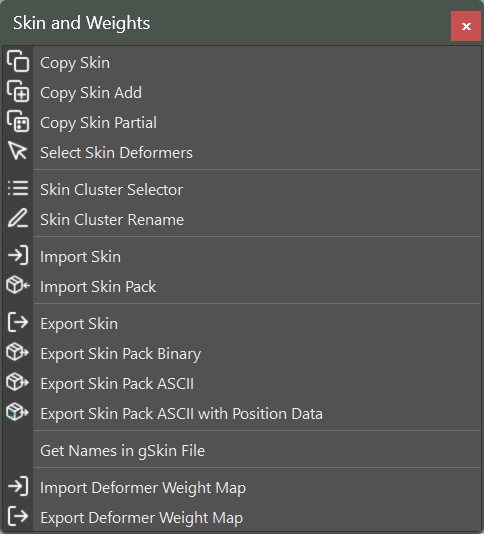
Copy Skin
Copy the complete skin cluster from a source mesh to a target mesh.
Usage:
Select the source mesh (the one with the skin cluster you want to copy)
Select the target mesh (add it to the selection)
Run Copy Skin
The tool uses Maya’s copySkinWeights with one-to-one influence association to transfer all weights from source to target. If the target mesh does not have a skin cluster, one is created automatically with the same influences as the source.
Copy Skin Add
Stack a new skin cluster on top of an existing one, preserving previous skinning layers.
Usage:
Select the source mesh
Select the target mesh (must already have a skin cluster)
Run Copy Skin Add
This is useful when you need to layer multiple skin cluster passes on the same geometry. The previous skin output is preserved and the new skin cluster is added on top.
Copy Skin Partial
Copy skin weights to selected vertices only, without affecting the rest of the mesh.
Usage:
Select the source mesh
Select the target vertices you want to update
Run Copy Skin Partial
A dialog appears with the following options:
Source Mesh: Click the arrow button to load the source mesh from your selection.
Normalize: When enabled, normalizes the weights after copying.
This tool uses closest-point matching to find the corresponding source vertex for each selected target vertex, making it ideal for fixing specific areas without a full skin copy.
Soft selection support
When Maya’s soft selection is enabled (B key), the tool automatically expands the working set to include every vertex inside the falloff region — you do not need to manually select them. Each vertex’s falloff value (0–1) is read from the active rich selection and used to linearly blend the copied weights with the vertex’s existing weights:
Vertices at the center of the selection (falloff = 1.0) receive the full copied weight (100% replacement).
Vertices at the edge of the falloff (falloff ≈ 0.0) keep weights very close to their original.
Everything in between is a smooth, proportional blend.
The result is a continuous gradient out from the click point instead of a hard seam at the selection boundary.
The hard selection still defines which meshes are touched: only meshes that contain at least one explicitly selected vertex are processed, even if soft falloff happens to reach a neighboring mesh.
Hard selection (soft select off) behaves exactly as before: every explicitly selected vertex is fully replaced with the copied weights and nothing else is touched.
Scripted use
from mgear.core import skin

# Honors current soft-selection state by default.
skin.skinCopyPartial(sourceMesh="body_geo")

# Force a hard copy regardless of soft-select state.
skin.skinCopyPartial(sourceMesh="body_geo", soft_select=False)
Select Skin Deformers
Select all joints and influences that are part of a mesh’s skin cluster.
Usage:
Select a skinned mesh
Run Select Skin Deformers
All joints influencing the selected mesh will be selected in the viewport. This is useful for quickly identifying which joints drive a particular mesh.
Skin Cluster Selector
A dockable UI for viewing and managing skin clusters on an object.
Usage:
Select a mesh
Run Skin Cluster Selector
The dialog lists all skin clusters connected to the selected object, including chained skin clusters. This is especially useful for meshes with multiple stacked skin clusters.
LMB click on a skin cluster to select it
RMB click to open the context menu:
Turn ON: Enable the skin cluster envelope
Turn OFF: Disable the skin cluster envelope
Disabled skin clusters appear in red, active ones in the default color.
Skin Cluster Rename
Rename all skin clusters on the selected objects to follow a standard naming convention.
Usage:
Select one or more skinned meshes
Run Skin Cluster Rename
Each skin cluster is renamed to objectName_skinCluster. This keeps your scene organized and makes it easier to identify which skin cluster belongs to which mesh.
Import Skin
Import skin weights from a .gSkin (binary) or .jSkin (JSON) file.
Usage:
Run Import Skin
Browse to the skin file
Weights are applied to the matching object in the scene
The import process:
Finds the matching object and joints in the scene by name (stored in the file), whatever their namespace
Creates a skin cluster if the object does not have one
Adds any missing joint influences automatically
Applies the saved weights
Namespaces and Clashing Names:
Objects and joints are matched even when the namespace differs between export and import, for example weights exported from a referenced rig (char:body) and imported into the rig file (body), or the other way around. When several objects share a short name (grpA|body and grpB|body), the full DAG path stored in the file picks the right one.
Remap Dialog:
When an object or joint can’t be resolved, the menu and drag-and-drop imports open the Skin Import Remap dialog, once per skin file:
Geometry tab: one row per missing or ambiguous object, set to Skip by default. The target list shows the scene objects with the same name or, when there are none, objects with a similar name. Each entry shows its point (vertex or CV) count; objects with the same point count as the exported one come first and are marked with ✓. The … button next to the list opens a list of every mesh, NURBS surface and curve in the scene, with a name filter and a Same point count only option, so you can pick any object while the dialog is open.

Joints tab: all the missing joints of the file in one table. Pick a target from the list or type its name, or use the match tools. The tools run on the selected rows, or on all rows when none are selected. Rows where the tool finds a match get the proposed joint (replacing a previous choice); the other rows keep their target. The viewport message shows how many rows matched:
Search/Replace: replaces text in each exported joint name and proposes the scene joint whose name is exactly the result (see the examples below)
Prefix: strip and/or add a name prefix (see the examples below)
L <-> R: swap side tokens, using the same rules as the mGear mirror tools
Similar name: closest name whose similarity is at least the Similarity value, from 0 to 1.
1.0only accepts identical names; the default0.80accepts small differences such asspine_C0_jntandspine_C0_0_jnt. Lower values accept looser matches with more risk of a wrong pickClosest position: joint at the same bind-pose position, within the Tolerance distance in world units. Needs skin files that store the joint bind positions; re-export older files to enable it.
The candidates can be the influences of the target skin cluster, all scene joints, or the joints under the selected root. Apply is enabled when every joint has a target; Skip unresolved applies what is set and skips the rest.

Search/Replace Examples:
The tools work on the joint name without its namespace, and only propose a joint when the result is exactly the name of one candidate joint. Without Regex, the search text is replaced literally, everywhere it appears in the name:
Search |
Replace |
Exported joint |
Proposed joint |
|---|---|---|---|
|
|
|
|
|
|
|
|
|
|
|
|
With Regex checked, the search is a Python regular expression and the replacement can use the matched groups (\1, \2…). There are no * wildcards: use .* (any text) or .+ (at least one character) instead.
Search (regex) |
Replace |
Exported joint |
Proposed joint |
|---|---|---|---|
|
|
|
|
|
(empty) |
|
|
|
|
|
|
|
|
|
|
|
|
|
|
\d+is one or more digits,[^_]+is text up to the first underscore,^and$are the start and end of the name, and(?i)makes the search ignore case.To try a pattern on a few joints first, select those rows; with no rows selected the tool runs on every row.
Prefix Examples:
Strip prefix removes the text from the start of the name, if it is there, then Add prefix is added. Either field can be empty.
Strip prefix |
Add prefix |
Exported joint |
Proposed joint |
|---|---|---|---|
|
(empty) |
|
|
(empty) |
|
|
|
|
|
|
|
|
|
|
|
Namespaces don’t need a prefix: they are already ignored when matching, and the Candidates list shows joints from every namespace.
If you pick a target object whose joints don’t match either, the dialog opens again for the same file with only those joints.
Save mapping… writes every choice made so far in the import to a
.gSkinMapfile: the choices from earlier dialogs (earlier files of a skin pack, or a first round of the same file) plus the current one. Once saved, the file is updated each time you click Apply or Skip unresolved in a later dialog of the same import, or load a mapping (the dialog shows Updating <file>). Save on the first dialog of a skin pack and the file ends up holding the remap of the whole pack. Skip this file and Cancel import don’t add that dialog’s rows to it.Load mapping… fills the rows from a
.gSkinMapfile and also uses it for the remaining files of the import, so loading it once covers the whole skin pack.Skip this file and Cancel import control the rest of a skin pack import.
Scripting:
from mgear.core import skin

# Default: unresolved objects and joints are skipped with a warning
skin.importSkinPack(path)

# Builds: fail before applying any weights if something is missing
skin.importSkinPack(path, on_missing="error", mapping="char.gSkinMap")

# Force a namespace ("" for the root namespace)
skin.importSkin(path, namespace="char:")

# Skin file or skin pack, chosen from the extension
skin.import_skin_or_pack(path, on_missing="error")
on_missing accepts "skip" (default), "error" (raises skin.SkinRemapError), "ui" (remap dialog) or a function that receives the skin.SkinRemapReport and returns a mapping ({"geometry": {...}, "influences": {...}}) or None to cancel.
Vertex Count Mismatch Handling:
If the file was exported from geometry with a different vertex count, the importer automatically falls back to a volume-based method. This uses vertex world positions (if stored in the file) or closest-point matching to map weights from the source topology to the target.
Note
For best results when dealing with topology changes, export your skin files with position data using Export Skin Pack ASCII with Position Data.
Import Skin Pack
Import multiple skin files at once from a .gSkinPack manifest file.
Usage:
Run Import Skin Pack
Browse to the
.gSkinPackfileAll referenced skin files are imported
Each skin file is resolved and applied on its own. The remap dialog opens only for files with missing items, and the choices made for one file are reused for the next ones. With on_missing="error", every file is checked before any weights are applied.
A skin pack is a directory containing individual skin files along with a manifest that lists them. This is the recommended approach for importing skin weights for an entire character.
Tip
Skin packs are commonly used with Shifter’s custom step system to automatically restore skin weights after a rig rebuild.
Export Skin
Export skin cluster data from selected meshes to a file.
Usage:
Select one or more skinned meshes
Run Export Skin
Choose a save location and file name
The file stores all skin cluster data including joint influences, per-vertex weights, dual quaternion blend weights, skinning method, and normalize settings.
Export Skin Pack Binary
Export skin data for multiple meshes as a binary skin pack.
Usage:
Select all skinned meshes to export
Run Export Skin Pack Binary
Choose a save location
This creates a .gSkinPack manifest file along with individual .gSkin binary files for each selected mesh. Binary files are smaller but not human-readable.
Skin file names keep the namespace and path of the object, with : written as . and | as - (char.body.gSkin, grpA-body.gSkin), so objects with the same short name don’t overwrite each other.
Export Skin Pack ASCII
Export skin data for multiple meshes as a JSON skin pack.
Usage:
Select all skinned meshes to export
Run Export Skin Pack ASCII
Choose a save location
This creates a .gSkinPack manifest file along with individual .jSkin JSON files for each selected mesh. JSON files are larger but human-readable and version-control friendly.
Export Skin Pack ASCII with Position Data
Export a JSON skin pack that includes vertex world positions for each mesh.
Usage:
Select all skinned meshes to export
Run Export Skin Pack ASCII with Position Data
Choose a save location
This is the same as Export Skin Pack ASCII but additionally stores the world-space position of every vertex. This position data enables the volume-based import method when the target geometry has a different vertex count than the original.
Note
Files exported with position data are larger due to the extra coordinate information. Use this option when you anticipate topology changes between export and import.
Get Names in gSkin File
Inspect a skin file and print the object names stored inside it to the Maya script editor.
Usage:
Run Get Names in gSkin File
Browse to a
.gSkinor.jSkinfile
The names of all objects contained in the file are printed to the script editor output. This is useful for verifying file contents without performing a full import.
Import Deformer Weight Map
Import deformer weight maps from a .wmap file.
Usage:
Select a deformer node
Run Import Deformer Weight Map
Browse to the
.wmapfile
Weight maps are restored to the selected deformer. This works with any Maya deformer that has a weight map, including wire deformers, clusters, and lattices.
Export Deformer Weight Map
Export deformer weight maps to a .wmap file.
Usage:
Select a deformer node
Run Export Deformer Weight Map
Choose a save location
The per-vertex weights of the selected deformer are saved as a JSON file. This is useful for backing up and transferring non-skin deformer weights.
File Formats
mGear uses several file formats for storing skinning and weight data.
.gSkin (Binary)
Binary skin file using Python’s pickle serialization. Stores joint influences, per-vertex weights, blend weights, skinning method, and normalize settings. Compact but not human-readable.
.jSkin (JSON)
JSON skin file with the same data as .gSkin but in a human-readable text format. Larger than binary but suitable for version control and manual inspection.
.gSkinPack (Manifest)
A JSON manifest file that references a collection of individual skin files. Used by Import Skin Pack and Export Skin Pack to handle multiple meshes at once. The manifest and skin files are stored together in the same directory.
Example directory structure:
character_skin/
    character_skin.gSkinPack
    body_geo.jSkin
    head_geo.jSkin
    hands_geo.jSkin
.gSkinMap (Remap)
A JSON file that maps the object and joint names stored in skin files to the objects and joints of the current scene. It is written by Save mapping… in the Skin Import Remap dialog (with every choice made during that import, see above) and read by Load mapping…, or passed to importSkin / importSkinPack with mapping= so builds can reuse an interactive remap without any dialog.
Example:
{
    "geometry": {
        "geo_root|geo_body_00_MMM": "|geo_root|geo_body_01_MMM",
        "char:geo_hair_00_MMM": "|geo_root|geo_hair_00_MMM"
    },
    "influences": {
        "arm_L0_3_jnt": "|rig|arm_L0_3_jnt",
        "arm_L0_s1_jnt": "arm_L0_1_jnt"
    },
    "version": 1
}
geometry: exported object name, as stored in the skin file (it can include a namespace or a|path), mapped to the scene object.influences: exported joint name, without namespace, mapped to the scene joint.The scene names can be full DAG paths (what the dialog saves) or any name that is unique in the scene. A name that is missing or not unique is ignored, and the normal automatic matching is used for it.
Both sections are optional, so a hand-written mapping can list only the names that need it.
Names that the mapping doesn’t list are still matched automatically, so the mapping only needs the renamed or ambiguous items.
.wmap (Weight Map)
A JSON file storing per-vertex deformer weight maps for non-skin deformers such as wire deformers, clusters, and lattices.